Configure Alarms
The purpose of this section is to present configuration of the alarm generation.
To accomplish this task, we have to take some basic steps, including
- configure a threshold and
- attach this threshold to a required channel in the data set.
In case the required data set is not available in the MiScout database, you can create it manually and assign it to the controller, as described in the following links: Average log data set, Status log data set, Summations log data set .
For proper configuration of alarms, the Data Set Manager plug-in is required. For more detail information, refer to Configuring Plug-ins.
Let's create a threshold, which will be activated for a very low grid power value, i.e. when this value is lower than 400. To configure a threshold under such conditions, follow the steps below:
- in the Data Set Manager window right click in the Threshold area and select Threshold;
- in the Edit threshold window type Very low power in the Name field;
- define the delay time between the condition is true (i.e. fulfilled) and the time a threshold fires by typing 1000 in the Delay (ms) field;
- in the Condition drop-down list select <;
- type 400 in the Value field;
- select Alarm option in the Type drop-down list. This configuration specifies the action, which will be executed after the threshold has fired;
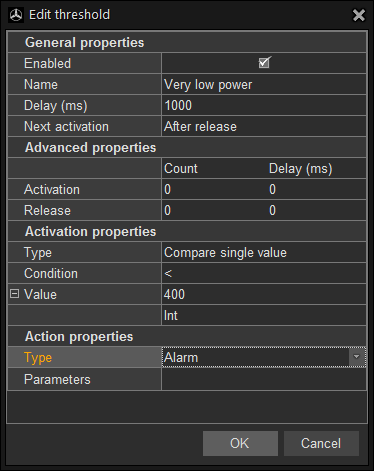
- click the Parameters field to specify the parameters for this script;
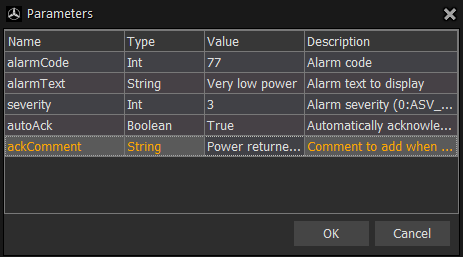
- in the alarmCode field type 77 (alarm will be generated by this code);
- in the alarmText field enter the description of this alarm Very low power;
- specify the severity value of this alarm (severity values range is from 0 to 5, where 0 is the lowest severity and 5 is the highest severity). In our case, we type 3 in the severity field;
- to specify, whether this alarm will be auto-acknowledged, assign True in the autoAck field. This means, that as soon as the condition is not fulfilled anymore, this alarm will be auto-acknowledged by MiScout;
- type Power returned to normal state in the ackComment field. The Parameter comment is responsible for the message which will appear, as soon as the alarm has been automatically acknowledged;
- click OK to proceed.
Now we need to attach a recently created threshold Very low power to the Grid Power channel using drag-and-drop. Afterwards, apply the changes by clicking  in the upper left corner, so they will be successfully saved on the server.

The next manual section Configure Trigger Log will provide you with more detail instructions on how to configure Trigger Log calculation from controller.